My new site will launch in
Showing posts with label How to. Show all posts

28 December 2009

How To Display the Shutdown Menu when your PC’s Power Button is pressed

By default, your Windows XP will shut down when the Power button is pressed. It’s a good idea to change it so that the shutdown menu is opened instead, especially if you have little kids running around the house, They may switch the Power button and important works maybe not saved and shut down.

It’s quite easy to change it, just follow these steps:

Step 1:

Go to your Win XP’s desktop, right-click & Select "Properties" and the Display Properties

Open the "Screen Saver" tab and look for the "Power" button near the bottom of the window. Click it.

step1

Step 2:

In the "Power Options Properties" window that opens, go to the "Advanced" tab.

There is a dialog box in the "Power Buttons" section. Choose what you want Windows to do when the power button is pressed.

"Ask me what to do" will make it open up the shutdown menu.

step2

Step 3:

Click "OK" and restart your computer. From now on, pressing the power button will open the shutdown menu, letting you decide what you want to do

22 December 2009

How to Type Upside down

Typing uʍop ǝpısdn down is really fun & cool! Want try this out? Just go to these website and type your text in uʍop ǝpısdn :)

• Go to one of this website: flipmytext.com or glitter-graphics.com and type anything what you want...


You Can use this text in social networks like facebook also. While chatting with your friends also you can copy the upside down text and paste them to your chat window and have fun by using sɹǝʇʇǝl uʍop ǝpısdn...

How to automatically wake your computer


Assigning scheduled tasks and automatically waking your computer is very useful, especially if you want your computer booted and virus-scanned before you arrive to play the Computer. There are various programs to do this, but it’s not that hard to do it manually.

1.
First go to Control Panel and choose Performance and Maintenance. Click the scheduled tasks icon.

2. Next click on Add Scheduled task to open the Scheduled Tasks Wizard.

3. Browse for the program you want to run or select it from the list. Type the name and select how often you want it to run.Press next and choose the time to run it. You might need to enter the username and password from where you want to run it. Check the settings in the final window and click on Open Advanced Properties for this task when I click finish, and click finish.

4. When the advanced properties window opens, click the Settings tab and choose Wake computer to run this task if you want.

11 December 2009

How to Access Facebook Chat on Your Desktop

Do you want your Facebook chat to be in your Desktop? Its an easy way :)
Gabtastik and digsby keeps Facebook chat sessions open on your Windows desktop outside of your regular web browser

07 December 2009

How to Place Facebook Chat on Firefox Sidebar

Facebook Chat is cool, at least it allows you to send instant messages to online Facebook contacts. Do you want the Facebook chat to be placed in you Firefox sidebar. Its simple, Just follow these simple steps:

Step 1:

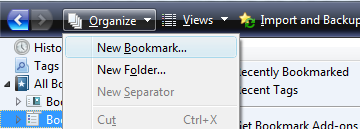
Look for Bookmarks on the top navigation. Select Organize Bookmarks…


Step 2:

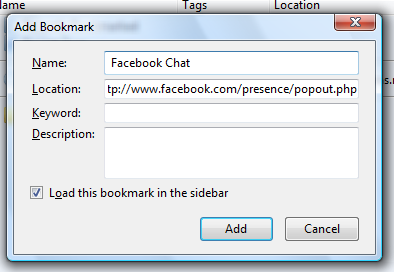
Click New Bookmark... tab and enter the following:
• Name: Facebook Chat (or anything you want..)
• Location: http://www.facebook.com/presence/popout.php
• Check Load this bookmark in sidebar


Step 3:
Click Facebook Chat and start chatting with your Facebook contacts within Firefox.

16 November 2009

How to make 3 fake computer viruses!

1. Fake error message
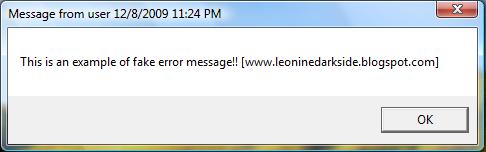

This one is by far, the easiest one to make and all you have to do is to make a new text document with notepad, type msg * YOUR MESSAGE and save as anything.bat. As always, make sure that you select All files instead of Text Document.

2. Forced shutdown

This will display a custom error message and start a countdown which will shut down the computer.

Right-click your desktop and create a new shortcut.
Paste the following code into the Location box in the Create Shortcut menu:
shutdown -s -t 30 -c “Your message here“

Replace 30 with the length of the countdown you want (in seconds) and place your custom error message between the quotes. Click next and name the shortcut to something the victim would be likely to click on such as “Internet explorer” or “My Documents”, etc.

Next you’d want to change the icon. Right-click on the shortcut you made and click properties. Find the Change Icon button and click it. Choose a suitable icon for the name you chose earlier.

And that’s all! Now you just have to sneak the shortcut onto the victim’s desktop and run!

Note: to stop it, open Run from the start menu and type shutdown-a.

3. Endless Command prompt windows

This will open up a series of command prompt windows that will never end.
The basic idea is that there are two .bat files that open the other one when opened, so the other one opens the first one again and the windows just won’t stop coming.

How to do this:
1. Fire up notepad and type: start 2.bat
2. Save it as 1.bat (make sure you choose all files when saving it)
3. Make another new text document and type: start 1.bat
4. Save it as 2.bat into the same folder as the other one.

All you have to do to start it is to click on either of them.

The only way to stop it is to wait for the windows to become so numerous that they are a group on the taskbar. Then you can use Close group to get rid of the bastards.

Softwares | How to's | Web design | Tips | Tech

About Me

Powered by Blogger.

Blog Archive