My new site will launch in
Showing posts with label Tips and Tricks. Show all posts

28 December 2009

How To Display the Shutdown Menu when your PC’s Power Button is pressed

By default, your Windows XP will shut down when the Power button is pressed. It’s a good idea to change it so that the shutdown menu is opened instead, especially if you have little kids running around the house, They may switch the Power button and important works maybe not saved and shut down.

It’s quite easy to change it, just follow these steps:

Step 1:

Go to your Win XP’s desktop, right-click & Select "Properties" and the Display Properties

Open the "Screen Saver" tab and look for the "Power" button near the bottom of the window. Click it.

step1

Step 2:

In the "Power Options Properties" window that opens, go to the "Advanced" tab.

There is a dialog box in the "Power Buttons" section. Choose what you want Windows to do when the power button is pressed.

"Ask me what to do" will make it open up the shutdown menu.

step2

Step 3:

Click "OK" and restart your computer. From now on, pressing the power button will open the shutdown menu, letting you decide what you want to do

24 December 2009

Some Google Secrets

In this post I am going to show you some hidden secrets of Google. This is really cool..Try these yourself and enjoy!

Follow these simple steps to get out somethings behind google logo..;)

1. Go to Google.com or Google.mv
2. Then write these words shown below and hit button

• "google gothic"


• "make google logo black and white"


• "google gangster"


• "google l33t"


• "google loco"


• "google rainbow"


This is not all of the words that change the google background.. These all are actually sites.. when you write these words and hit the I'm feeling lucky button it redirects to that sites.. Hope you likes this post!


22 December 2009

How to Type Upside down

Typing uʍop ǝpısdn down is really fun & cool! Want try this out? Just go to these website and type your text in uʍop ǝpısdn :)

• Go to one of this website: flipmytext.com or glitter-graphics.com and type anything what you want...


You Can use this text in social networks like facebook also. While chatting with your friends also you can copy the upside down text and paste them to your chat window and have fun by using sɹǝʇʇǝl uʍop ǝpısdn...

How to automatically wake your computer


Assigning scheduled tasks and automatically waking your computer is very useful, especially if you want your computer booted and virus-scanned before you arrive to play the Computer. There are various programs to do this, but it’s not that hard to do it manually.

1.
First go to Control Panel and choose Performance and Maintenance. Click the scheduled tasks icon.

2. Next click on Add Scheduled task to open the Scheduled Tasks Wizard.

3. Browse for the program you want to run or select it from the list. Type the name and select how often you want it to run.Press next and choose the time to run it. You might need to enter the username and password from where you want to run it. Check the settings in the final window and click on Open Advanced Properties for this task when I click finish, and click finish.

4. When the advanced properties window opens, click the Settings tab and choose Wake computer to run this task if you want.

17 December 2009

Freestyle Soccer Tricks: Neck Stall

Get more freestyle Tips & Tricks from soccer-tricks.blogspot.com

Neck stall can be done by placing a soccer ball on your neck and balance it for as long as you can.

Beginner's Level:


1. Place the ball on an even surface of your neck. Find a spot where you feel the most comfortable at. Then balance it for as long as you can.

2. Flick it up by letting the soccer ball roll down on the back of your head for about 3/4. Then flick it up and catch the ball.

3. Repeat the same steps again.


Intermediate Level:

1. Throw the soccer ball at a reasonable height.

2. Catch the ball by letting it stall on your neck. A good timing and execution should improve this.

3. Once you've neck stalled it, flick it up and catch the ball.


Advanced Level:


1. You can start by doing a foot stall.

2. Flick it up at head height.

3. Catch by doing the neck stall.

Tip: Your body needs to bend in 90 degrees to achieve a balance on your neck

4. Flick it up with your head and catch the ball.

5. Repeat the same steps again.


So there are 3 levels to improve your neck stall. It does takes time and with practice and persistent, you should be able to do it with ease. Hope that helps!

Source: soccer-tricks.blogspot.com

10 December 2009

Easy Energy pack for Mafia Wars


First log in to your Facebook Account and Copy and paste the link below to your address bar and hit Enter to get your energy pack every 24 hours.


If this link doesn’t work you can do another trick. You can ask your friend for energy pack or you can create another Facebook account and send an energy pack for your mafia wars.. But be careful you might get banned from Facebook for creating second Facebook account.

07 December 2009

How to Place Facebook Chat on Firefox Sidebar

Facebook Chat is cool, at least it allows you to send instant messages to online Facebook contacts. Do you want the Facebook chat to be placed in you Firefox sidebar. Its simple, Just follow these simple steps:

Step 1:

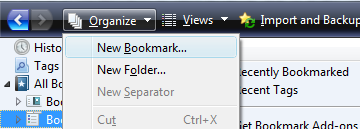
Look for Bookmarks on the top navigation. Select Organize Bookmarks…


Step 2:

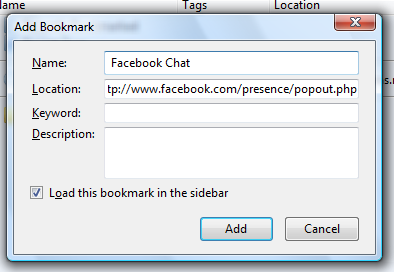
Click New Bookmark... tab and enter the following:
• Name: Facebook Chat (or anything you want..)
• Location: http://www.facebook.com/presence/popout.php
• Check Load this bookmark in sidebar


Step 3:
Click Facebook Chat and start chatting with your Facebook contacts within Firefox.

20 November 2009

Cool Tricks with a USB Thumb Drive


» Set a program to run automatically (autorun):
Using autorun, you can set a program to start up automatically when you connect the drive to a computer. You can also use the same script for a data CD-ROM. Note that some computers have autorun disabled for security purposes.
Open up notepad and paste the following script:

[autorun]
ShellExecute=filename
Label=description
UseAutoPlay=1

Make sure you replace filename with the full path to the file. For example, a file called program.exe in a folder called “programs” on the thumb drive would be /programs/program.exe
Replace description with a short description of the program, for example, My Jukebox or Mozilla Firefox.
Save the file as autorun.inf, making sure you select “All Programs” from the save menu, not “Text document”!

» Portable jukebox
Don’t just carry the music with you, also carry the player! You can install audio programs such as WinAmp and CoolPlayer+ on your thumb drive. Just unextract the ZIP folders to the USB drive.
If you want the jukebox to start up automatically when you connect the memory stick to the computer, use the autorun feature and point it to the exe of your audio player.
» Encrypt your data
If you carry any sensitive indormation on your USB memory stick, a good idea is to encrypt it. Hardware-level encryption will help, but it will cost extra. You can get a free program to encrypt your data just as securely. For this I recommend TrueCrypt, but most others will also do.
You will need admin access on the computer you want to use your encrypted thumb drive on, so this it’s usability a little.
» Take your programs with you
We all know how frustrating it is when we take your files to another computer just to discover that the software required to read the files is not installed.
Here’s the simplest solution – take your programs with you – on your USB thumb drive. Here’s how to do it with Portable Apps:
1. Go to the Portable Apps website and download the installer, choosing the software you want to carry along.
2. Run the installer and install the software to the root of your USB thumb drive.
And you’re done! As soon as you connect your thumb drive into a computer, Portable Apps will open up automatically.

16 November 2009

How to make 3 fake computer viruses!

1. Fake error message
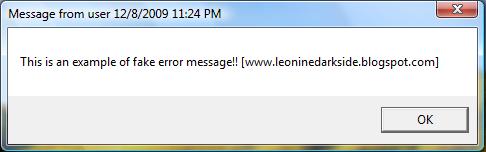

This one is by far, the easiest one to make and all you have to do is to make a new text document with notepad, type msg * YOUR MESSAGE and save as anything.bat. As always, make sure that you select All files instead of Text Document.

2. Forced shutdown

This will display a custom error message and start a countdown which will shut down the computer.

Right-click your desktop and create a new shortcut.
Paste the following code into the Location box in the Create Shortcut menu:
shutdown -s -t 30 -c “Your message here“

Replace 30 with the length of the countdown you want (in seconds) and place your custom error message between the quotes. Click next and name the shortcut to something the victim would be likely to click on such as “Internet explorer” or “My Documents”, etc.

Next you’d want to change the icon. Right-click on the shortcut you made and click properties. Find the Change Icon button and click it. Choose a suitable icon for the name you chose earlier.

And that’s all! Now you just have to sneak the shortcut onto the victim’s desktop and run!

Note: to stop it, open Run from the start menu and type shutdown-a.

3. Endless Command prompt windows

This will open up a series of command prompt windows that will never end.
The basic idea is that there are two .bat files that open the other one when opened, so the other one opens the first one again and the windows just won’t stop coming.

How to do this:
1. Fire up notepad and type: start 2.bat
2. Save it as 1.bat (make sure you choose all files when saving it)
3. Make another new text document and type: start 1.bat
4. Save it as 2.bat into the same folder as the other one.

All you have to do to start it is to click on either of them.

The only way to stop it is to wait for the windows to become so numerous that they are a group on the taskbar. Then you can use Close group to get rid of the bastards.

Softwares | How to's | Web design | Tips | Tech

About Me

Powered by Blogger.

Blog Archive